MULTIPLE FACE SWAP

One group photo.
A face for everyone.

FaceEnjoy turns a group photo into a clear, face-by-face workflow. It detects complete faces, numbers the targets, and lets you choose who to replace before creating the result on your device.

Android · Available on Google Play · iOS coming soon

One-to-one source mappingOn-device processing
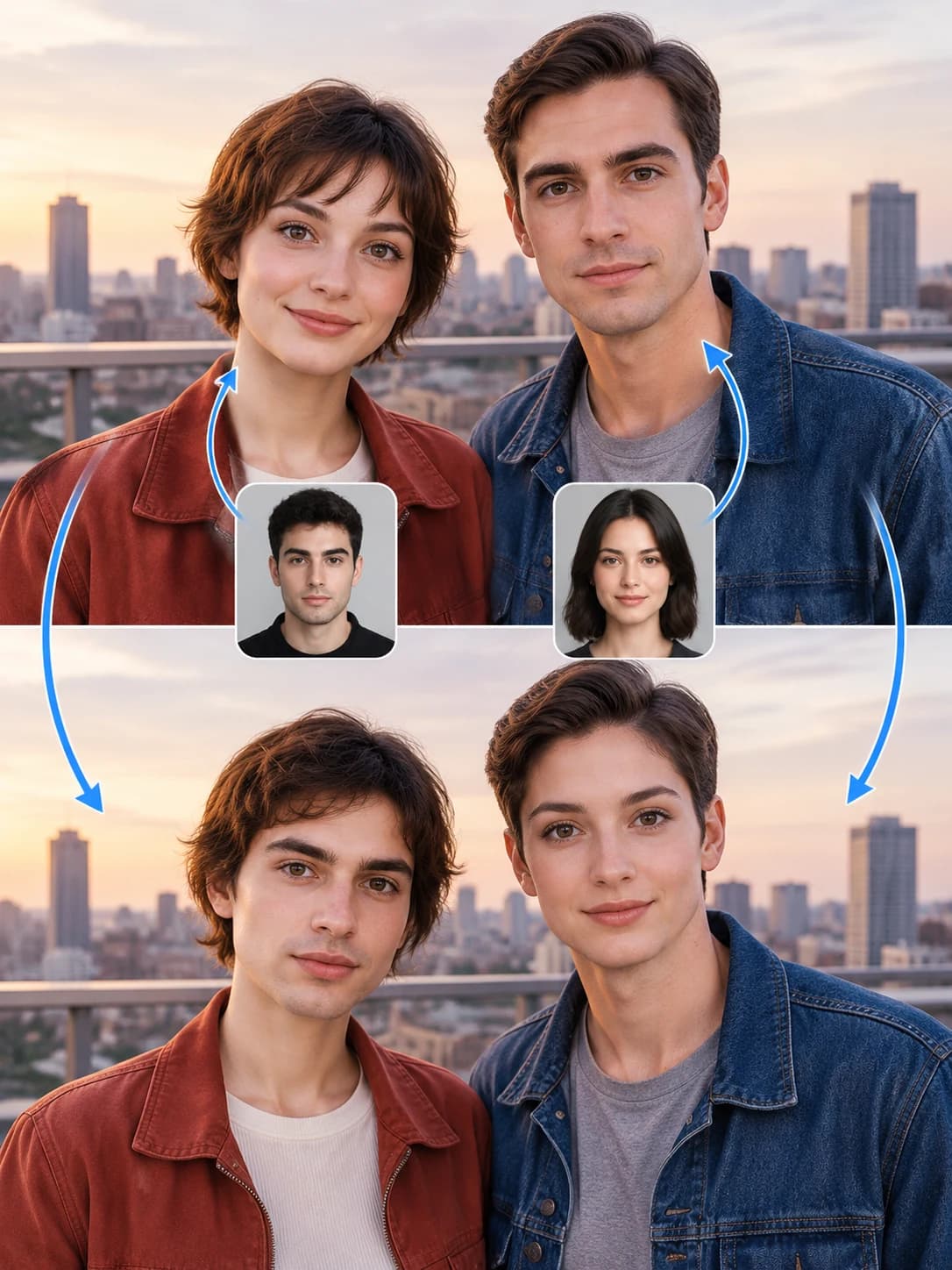
Illustrative exampleRooftop sunset
Rooftop sunset. Top · Target photo; Inset · Source face; Bottom · Swap illustration. Illustrative images. Actual results vary by photo and device.
Top · Target photoInset · Source faceBottom · Swap illustration

Illustrative images. Actual results vary by photo and device.

MULTIPLE FACE SWAP

Choose exactly who changes.

Map the faces you want to replace, then check each choice before creating.

  1. 01

    Start with one person

    Select one detected face in a group photo and assign its source. You choose which faces to map.

  2. 02

    Give each person a source

    Use a different source photo for each selected face. Numbered targets help you check who is mapped to whom.

  3. 03

    Adjust before creating

    Change or remove a mapping before starting the on-device composition, then preview the result before saving.

Get it on Google Play

Illustrative example

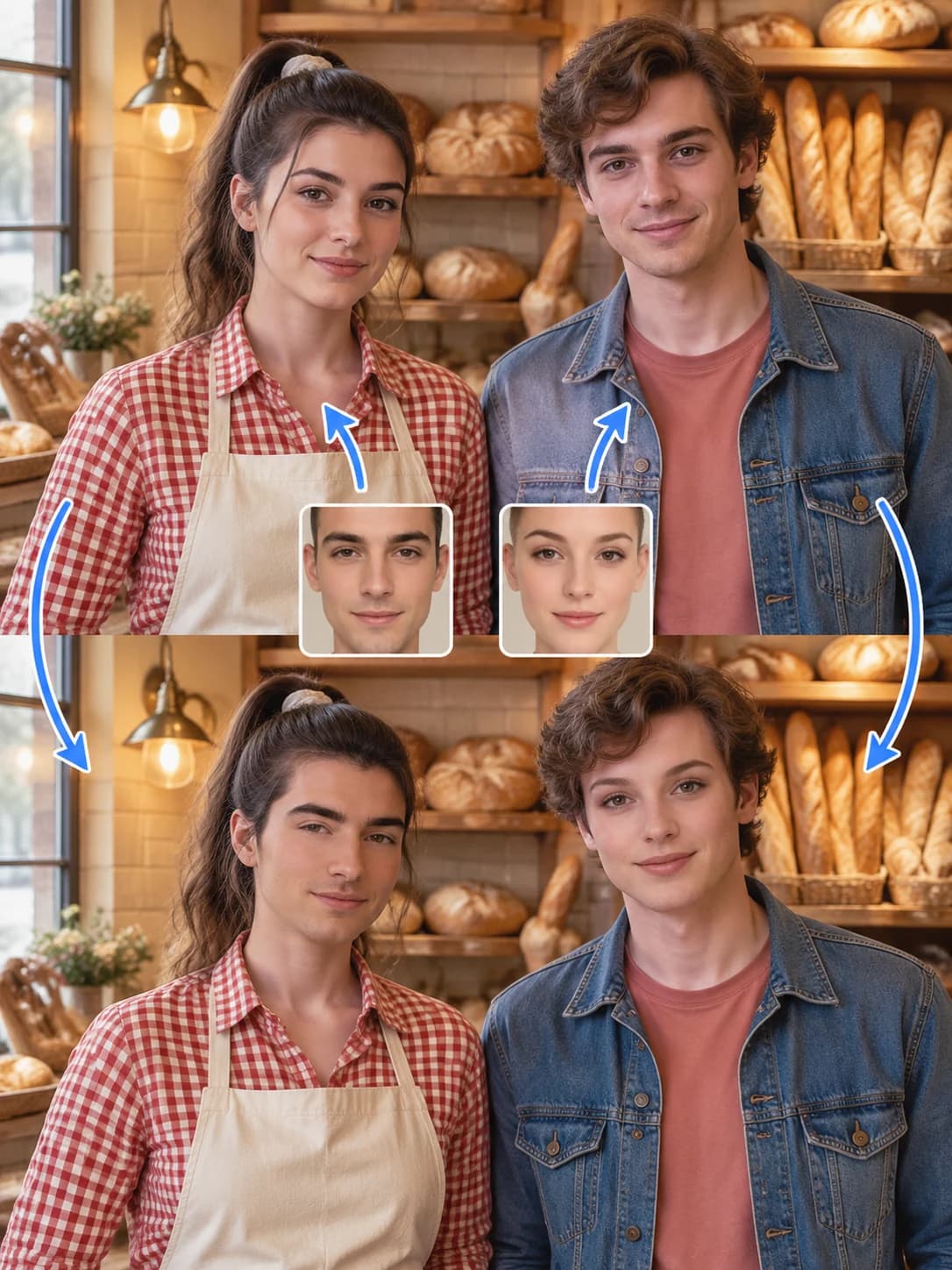
Two faces. Two source photos.

Give the person on the left and the person on the right their own source face. Check each pairing before creating.

At the bakery
Illustrative exampleAt the bakery
At the bakery. Top · Target photo; Inset · Source face; Bottom · Swap illustration. Illustrative images. Actual results vary by photo and device.
Top · Target photoInset · Source faceBottom · Swap illustration

Illustrative images. Actual results vary by photo and device.

01

Detect, number, and map each person

After you select a group photo, FaceEnjoy displays complete detected faces with clear numbers. Assign a different source photo to each target, then review, replace, or remove individual mappings before creation.

02

Start with a readable group photo

Faces that are small, blurred, heavily covered, or turned far from the camera may be missed or produce less consistent results.

  • ✓Use the clearest original photo available.
  • ✓Keep each face large enough to show complete features.
  • ✓Check every numbered mapping before creation.
03

Compose locally, one mapping at a time

The current workflow applies your chosen mappings sequentially with the on-device face engine. First use may require an engine download, but selected photos are not uploaded to a FaceEnjoy generation server for composition.

Create responsibly. Only use photos you have the right and consent to use.

Read the privacy overview

FAQ

Questions, answered honestly.

01Can I use a different source photo for each person?+

Yes. Each detected target face can have its own source, and you can change or remove a mapping before creation.

02Why was someone in my group photo not detected?+

The face may be too small, blurred, obscured, or shown at an extreme angle. Try a clearer photo in which the complete face is visible.

03Is the group result saved or shared automatically?+

No. It reaches the system photo library only when you choose Save, or the system share sheet only when you choose Share.

FACEENJOY

Ready to meet another you?

Get it on Google Play